
Two-way calendar sync needs two links per platform: the platform's calendar link pasted into RentalCal, and RentalCal's link pasted back into the platform. The second one is the step hosts skip, and until it is done your direct bookings never block dates on Airbnb, Vrbo or Booking.com.
The RentalCal Chrome extension does both from the platform's own calendar settings page. It connects the platform's calendar to your RentalCal property, then fills RentalCal's link into the platform's import form for you to save.
Install and Connect
- Add RentalCal: Calendar sync to Chrome from the Chrome Web Store.
- RentalCal opens in a new tab. If you are signed in, the extension connects to your account straight away. If not, sign in and you come back to the same page. New to RentalCal? Create a free account, then click the RentalCal icon in Chrome's toolbar and choose Connect to RentalCal.
- You see This browser is connected. That is all the setup there is.
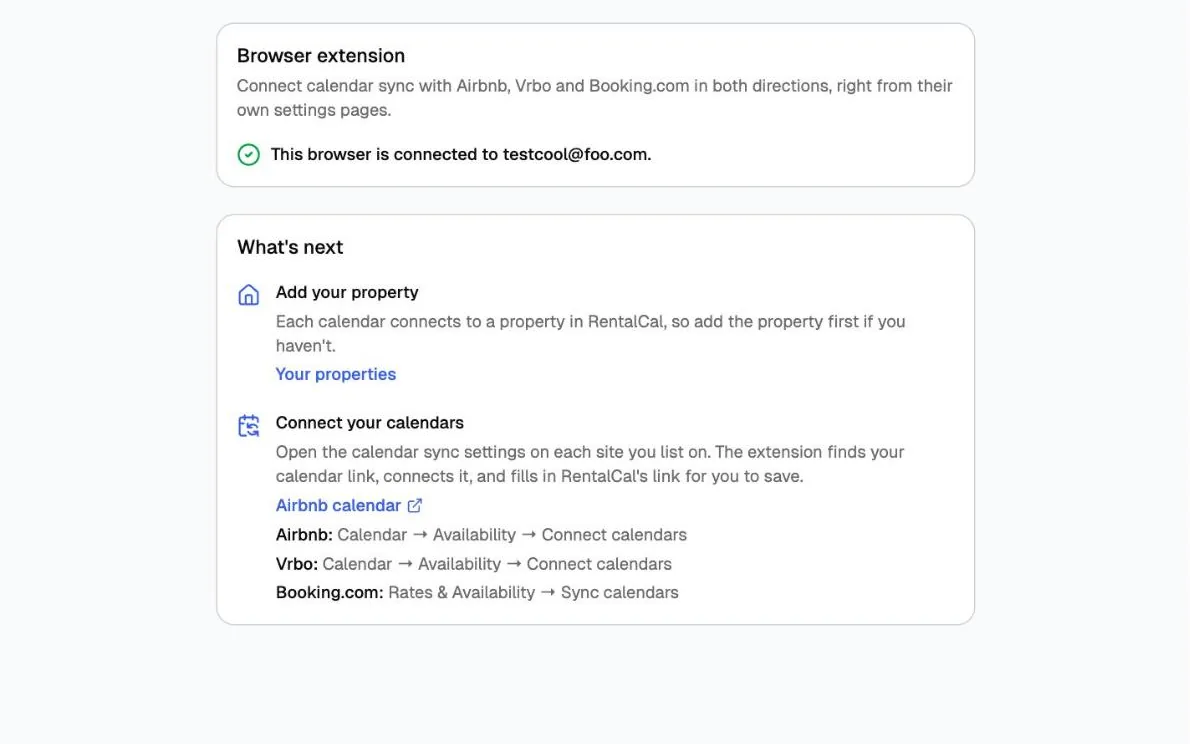
You can also connect from the RentalCal icon in Chrome's toolbar: click Connect to RentalCal. If one-click connect does not work in your browser, open RentalCal, go to Settings → Browser extension, click Connect a browser, and type the code it shows into the extension under Have a pairing code?
Each calendar connects to a property you already have in RentalCal, so add your property first if you have not.
Use It on Airbnb
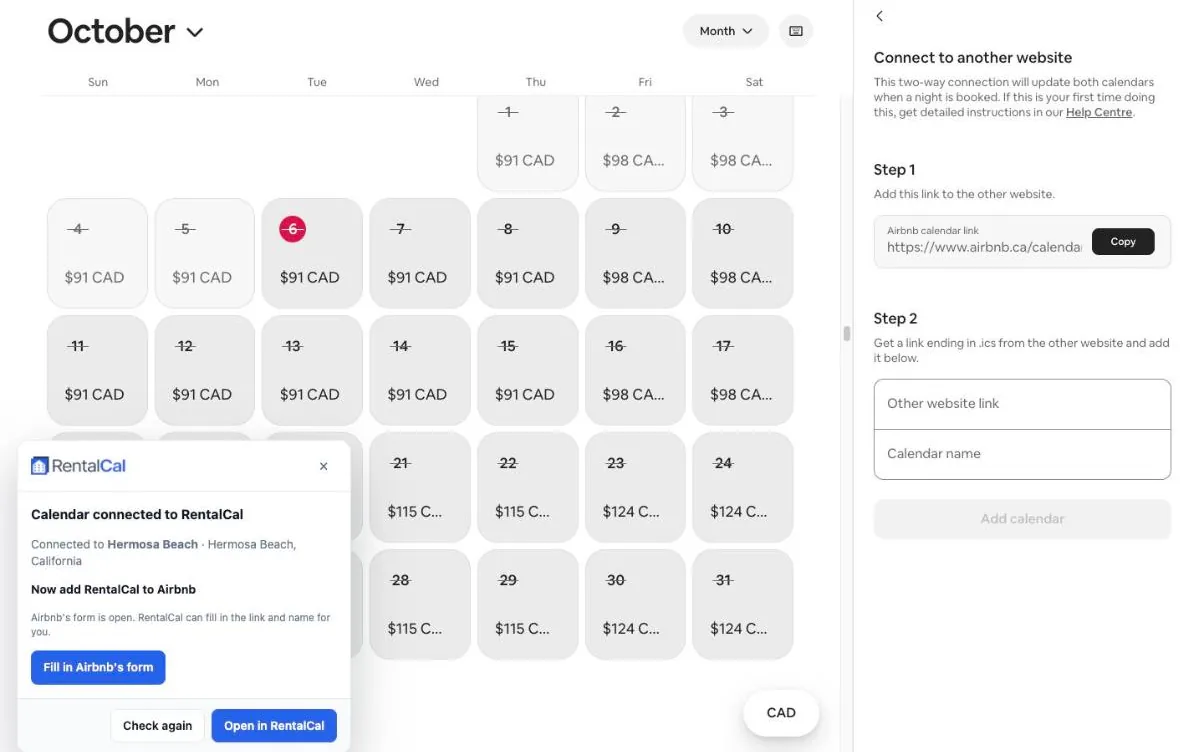
- In Airbnb, open Calendar, pick your listing, then open Availability.
- Under Connect calendars, click Connect to another website.
- The RentalCal box appears in the bottom-left corner. Check the property it names and click Connect to RentalCal. Airbnb bookings now block dates in RentalCal.
- Click Fill in Airbnb's form. The extension fills Other website link with your RentalCal link and names it RentalCal.
- Check the two fields and click Airbnb's Add calendar. Your direct bookings now block dates on Airbnb too.
Use It on Vrbo
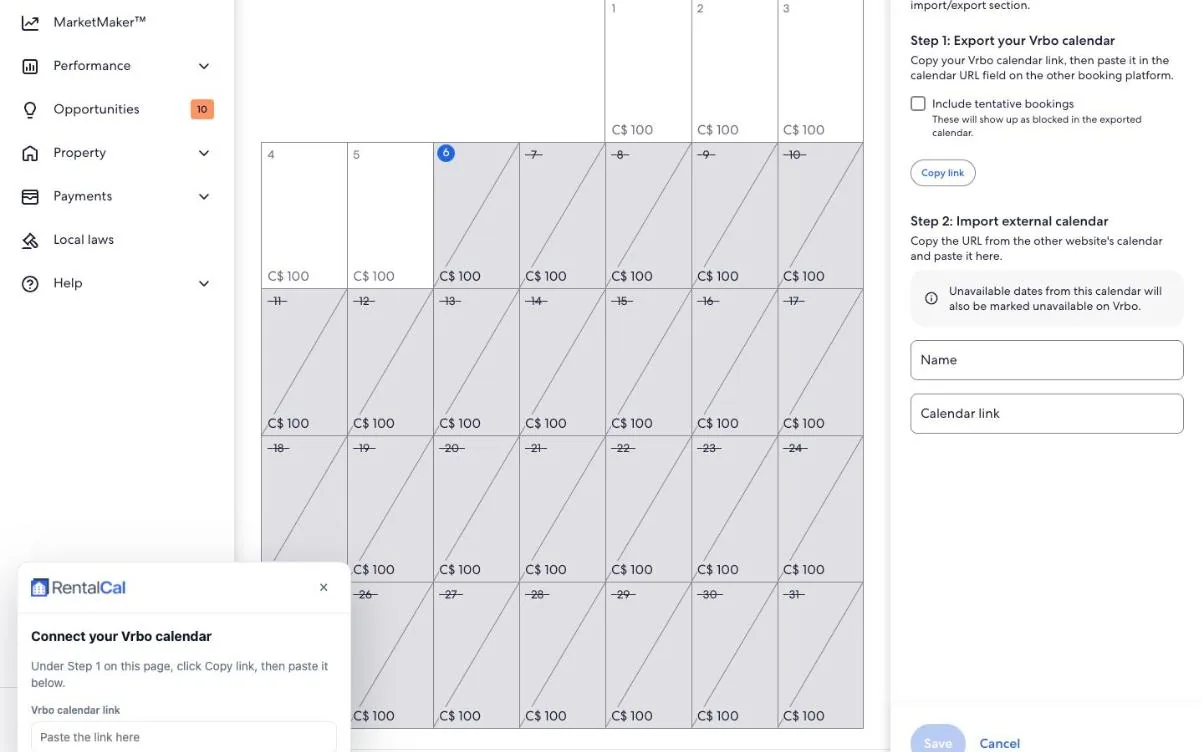
- In Vrbo, open Calendar from the left menu, then the Availability tab in the settings panel.
- Under Calendar sync, click Connect calendars. The RentalCal box appears.
- Vrbo does not show its calendar link on the page. Under Step 1, click Vrbo's Copy link, then paste it into the box.
- Click Connect to RentalCal, then Fill in Vrbo's form. It fills Name and Calendar link.
- Check the fields and click Vrbo's Save.
Use It on Booking.com
- In the Booking.com extranet, open Rates & Availability → Sync calendars.
- When the import form is open, the RentalCal box appears. If it asks for a link, copy Booking.com's calendar export link from the page and paste it in.
- Click Connect to RentalCal, then Fill in Booking.com's form, and save on Booking.com.
Check Sync Is Working
Click the RentalCal icon in Chrome's toolbar. Each property shows a tag per platform:
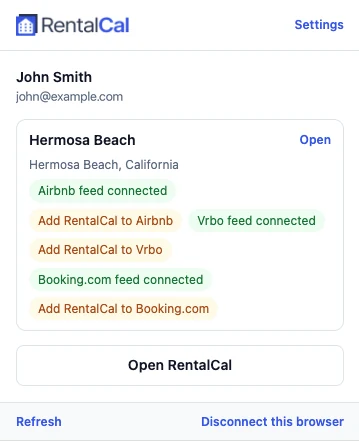
- Airbnb feed connected: bookings on that platform block dates in RentalCal.
- Airbnb reads RentalCal: the platform is reading your RentalCal calendar, so sync runs both ways.
- Add RentalCal to Airbnb: the platform has not read your RentalCal calendar yet. Platforms check every few hours, so give it a few hours after saving before you worry.
Troubleshooting
The RentalCal box does not appear
- Refresh the page. A tab that was open before you installed or updated the extension does not have it yet.
- Make sure you are on the calendar sync screen itself: Connect to another website on Airbnb, Connect calendars on Vrbo, Sync calendars on Booking.com.
- If you closed the box, it shrinks to a RentalCal calendar sync button in the corner. Click it to bring the box back.
It says "Connect this browser to RentalCal"
The browser is not connected, or it was disconnected from Settings. Click Connect to RentalCal in the box, then come back to the page.
It says to add the property first
Calendars connect to properties you already have. Add the property in RentalCal, then reopen the platform's calendar sync screen.
"That doesn't look like a Vrbo calendar link"
Click Vrbo's Copy link again and paste it as it is. Vrbo copies the link without showing it, so anything else on your clipboard will not work.
It warns it will replace a calendar
The property already syncs a different calendar from that platform. Connecting replaces it. Choose another property if this calendar belongs to a different listing.
What the Extension Can See
- It only acts on the calendar settings pages of Airbnb, Vrbo and Booking.com, and on RentalCal itself to connect your browser.
- It never reads your messages or inbox. It only acts while you have one of those pages open.
- It never saves anything on a platform. It fills the form, and you click the platform's own button.
- It sends RentalCal only the calendar link you choose to connect. The connection to your account is kept in Chrome and is never shown to the pages you visit.
Full details are in the Privacy Policy.
Disconnect or Remove It
- Disconnect a browser: click the RentalCal icon and choose Disconnect this browser, or go to Settings → Browser extension in RentalCal and click Disconnect next to it.
- Remove the extension: right-click the RentalCal icon in Chrome's toolbar and choose Remove from Chrome.
Calendars you connected keep syncing either way. They live in RentalCal, not in the extension.
FAQ
Does it cost anything?
No. The extension works on every RentalCal plan, including the free plan.
Which browsers does it work in?
Chrome on a computer. It does not run on phones or tablets, where you can still connect calendars in RentalCal from a property's Channels tab.
Do I need the extension to sync calendars?
No. You can paste the links by hand, as described in how to sync Airbnb, Vrbo, and Booking.com calendars. The extension saves the copying and catches the step that is easy to miss.
Is it made by Airbnb, Vrbo or Booking.com?
No. RentalCal is not affiliated with Airbnb, Vrbo or Booking.com. The extension only uses the calendar sync each platform already offers.